
Documentation

Getting Started

Learn how to set up Modularity Engine and create your first project.

Overview

Modularity is a native C++ engine with an integrated editor. The core is built around:

  • A scene graph made of SceneObject instances with component-style flags/data.
  • An OpenGL renderer with post-processing and UI rendering.
  • A scripting system that hot-compiles native C++/C into shared libraries and optionally hosts managed C# via Mono.
  • Optional PhysX-based 3D physics, plus a lightweight built-in 2D simulation.
  • Audio via miniaudio with spatial playback and reverb zones.

Editor Interface

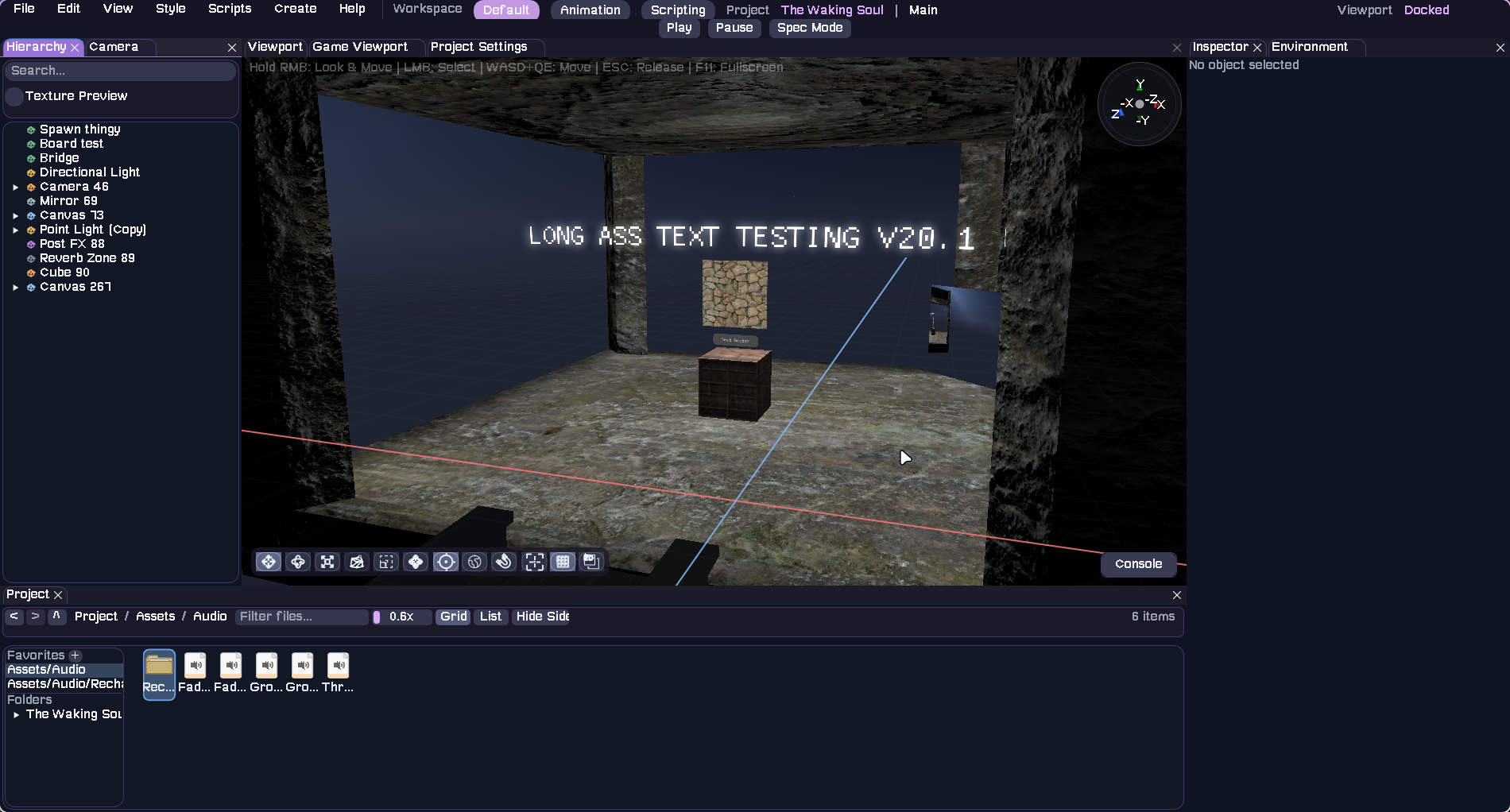
The Modularity Engine editor provides a comprehensive workspace with multiple panels for scene editing, asset management, and project configuration.

Modularity Engine Editor Overview

Viewport

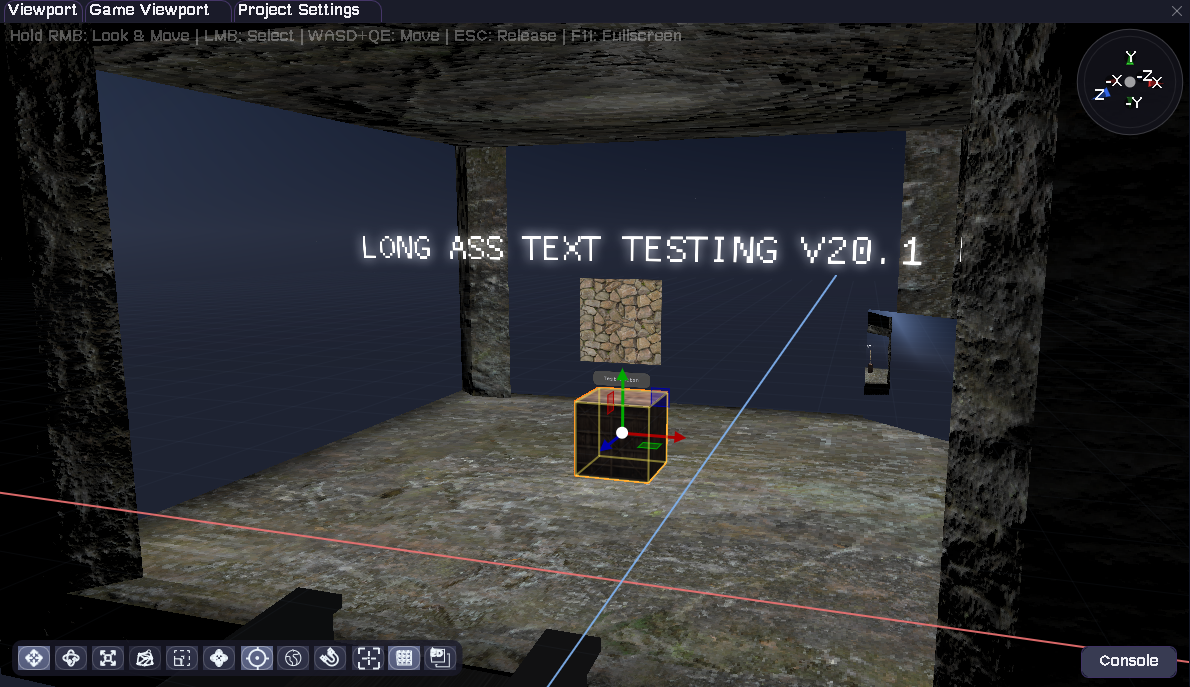
The central 3D viewport displays your scene with full navigation controls. Use the mouse to look around and WASD keys to move. Transform gizmos appear when objects are selected, allowing you to manipulate position, rotation, and scale directly in the scene.

Scene Viewport with Transform Gizmos

Hierarchy Panel

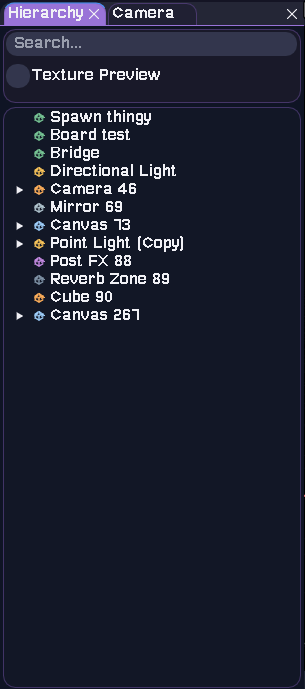
The Hierarchy panel shows all objects in your current scene in a tree structure. Objects can have children, creating parent-child relationships. Use the search bar at the top to quickly find objects by name.

Scene Hierarchy Panel

Inspector Panel

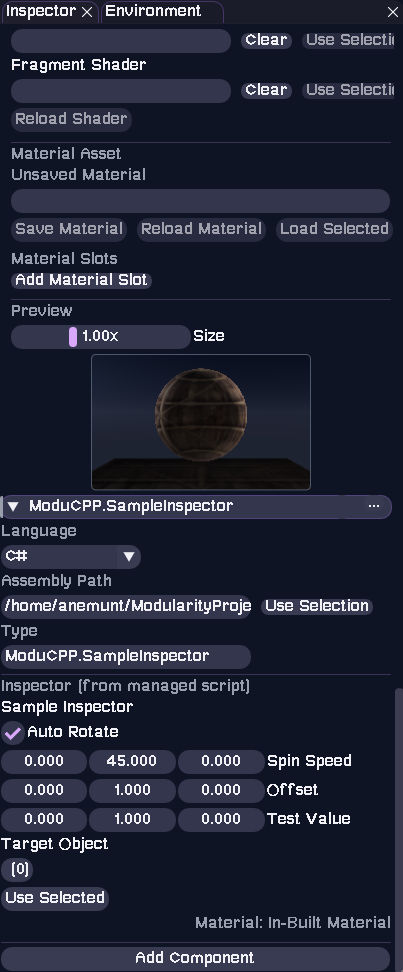
The Inspector displays detailed properties of the selected object or asset. For scene objects, you can edit transform values, component settings, and script parameters. Materials show shader properties and texture slots with live previews.

Inspector Panel with Material Properties

Project Browser

The Project browser provides access to all project assets including scenes, scripts, models, materials, and shaders. Assets are organized in folders that mirror your project directory structure. You can switch between grid and list views, and use the filter to search for specific files.

Project Asset Browser

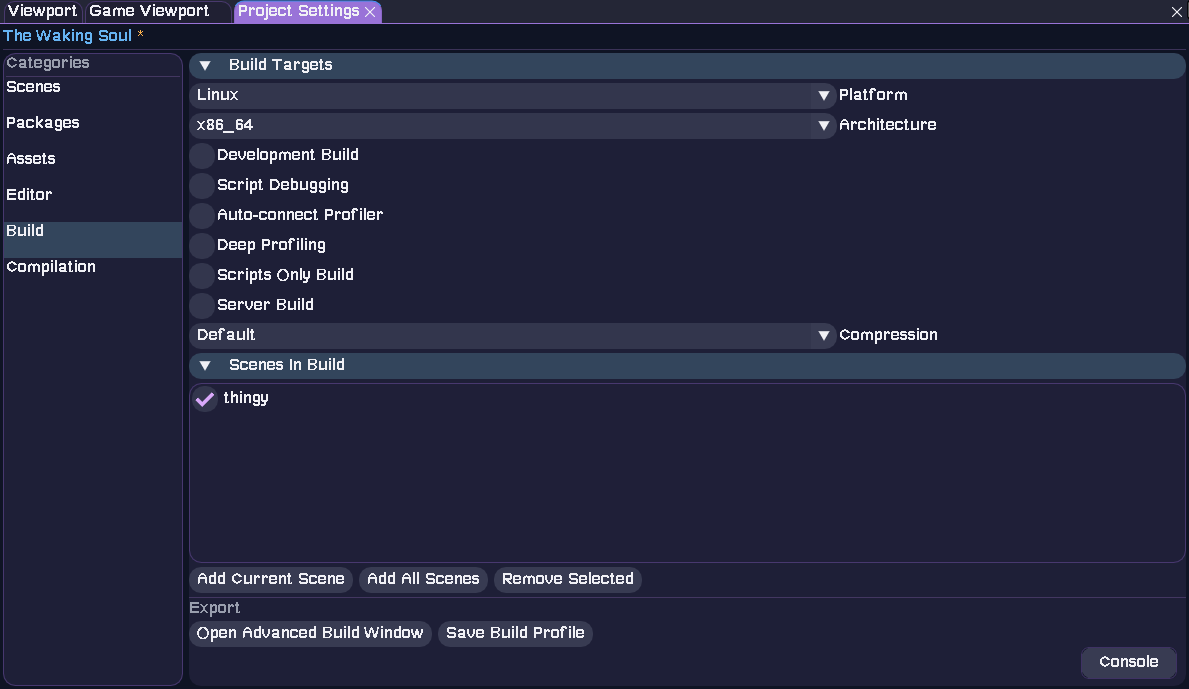
Project Settings

Access Project Settings from the top menu to configure build targets, platform settings, and scenes to include in your build. The settings window allows you to select build configurations, manage compression options, and export your project.

Project Build Settings

Build and Run

Primary Build Scripts

Use the provided scripts for a full editor + player build:

  • build.sh (Linux/macOS) and build.bat (Windows)

These scripts handle the following:

  • Initializes git submodules.
  • Builds the editor in build/.
  • Builds a player-only target in build/player-cache/.
  • Copies built libraries into Packages/Engine and Packages/ThirdParty inside each build folder.

CMake Options

These options are defined in CMakeLists.txt:

MODULARITY_BUILD_EDITOR    # default ON - build the editor target
MODULARITY_ENABLE_PHYSX    # default ON - enable PhysX integration
MODULARITY_USE_MONO        # default ON - enable Mono embedding for managed scripts
MONO_ROOT                  # explicit Mono runtime path if not using the bundled one

Entry Points

  • Editor: src/main.cpp
  • Player: src/main_player.cpp

Both set the working directory to the executable location before engine init.

Project Layout

New projects are created with a consistent directory structure (see Project::create):

Project Structuretext
YourProject/
  Assets/
    Scenes/
    Scripts/
      Runtime/
      Editor/
    Models/
    Shaders/
    Materials/
  Library/
    CompiledScripts/
    InstalledPackages/
    ScriptTemp/
    Temp/
  ProjectUserSettings/
    ProjectLayout/
    ScriptSettings/
  Scripts/
    Managed/            # optional, created when managed C# scripting is set up
  project.modu
  scripts.modu
  packages.modu

Key Files

  • project.modu - Project name + last opened scene.
  • scripts.modu - Native script build configuration (legacy Scripts.modu is still detected).
  • packages.modu - Script dependency manifest.
  • Scenes live in Assets/Scenes with extension .scene.