
Engine Layout
The Engine Layout is the core of the editor UI. This is where scenes are created, objects are managed, and properties are edited in real time.
The Modularity editor consists of four main panels:
1. Hierarchy
2. Viewport
3. Inspector
4. Materials
Each panel plays a specific role in the workflow and is designed to work together seamlessly.
You can see the layout example below:

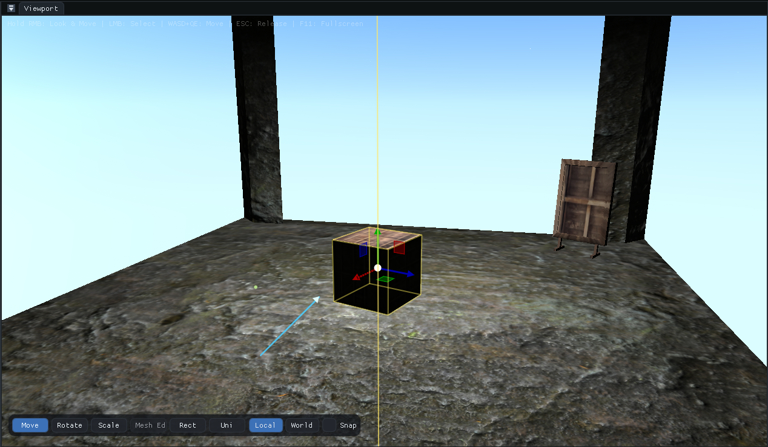

Viewport
The Viewport is your main 3D scene view where you visualize and interact with objects in your scene.
Toolbar Controls
Move — Translate objects along axes
Rotate — Rotate objects around axes
Scale — Scale objects uniformly or per-axis
Mesh Ed — Mesh editing mode
Local/World — Toggle transform space
Snap — Enable grid snapping
Hierarchy
The Hierarchy panel displays all objects in your scene as a searchable tree structure.
Object Type Prefixes
[M] Mesh objects (D) Directional lights (L) Point lights [#] Primitives (C) Cameras Inspector
The Inspector shows and edits properties of the selected object.
Object Info
- • Name — Object identifier
- • Type — Object type (Cube, Mesh, Light, etc.)
- • ID — Unique object ID
Transform
- • Position — X, Y, Z world coordinates
- • Rotation — Euler angles in degrees
- • Scale — Per-axis scale factors
- • Reset Transform — Reset to default values
Material
The Material section controls the object's appearance:
Surface Inputs
- Base Color (RGB)
- Metallic (0.0-1.0)
- Smoothness (0.0-1.0)
- Ambient Light
- Detail Mix
Maps
- Base Map (albedo)
- Detail Map
- Normal Map
Shader
- Vertex Shader
- Fragment Shader
- Reload Shader
- Material Asset